Settings
Tray icon → Settings… — categories on the left, one page at a time on the right. Nothing is written until you choose Apply or OK, and Cancel discards the lot.
A group's own settings — its name, its members, its icon, its hotkey, whether it is enabled — are not here. They live with the group, in the Groups dialog.
Every option explains itself underneath, and F1 opens this help.
General
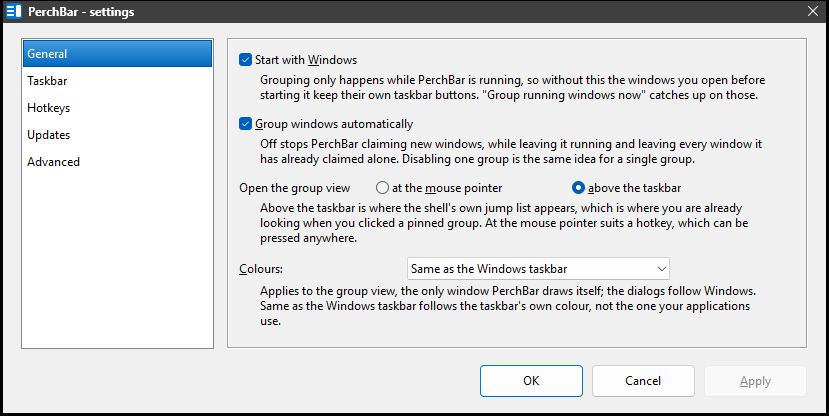
The categories on the left; the page for the one you pick on the right. The dialog is as tall as its tallest page, so switching category never resizes it.
| Start with Windows | Grouping only happens while PerchBar is running, so without this the windows you open before starting it keep their own taskbar buttons. Group running windows now catches up on those. |
|---|---|
| Group windows automatically | Off stops PerchBar claiming new windows, while leaving it running and leaving every window it has already claimed alone. That is the difference between this and Exit; disabling one group is the same idea for a single group. |
| Open the group view | at the mouse pointer, or against the taskbar where the Jump List appears. See The group view. |
| Colours | Same as the Windows taskbar by default, or Light or Dark outright. It follows the taskbar's setting rather than the one your applications use — those are two separate Windows settings, and the group view opens against the taskbar. It applies to the group view, the only window PerchBar draws itself; the dialogs follow Windows. |
Taskbar
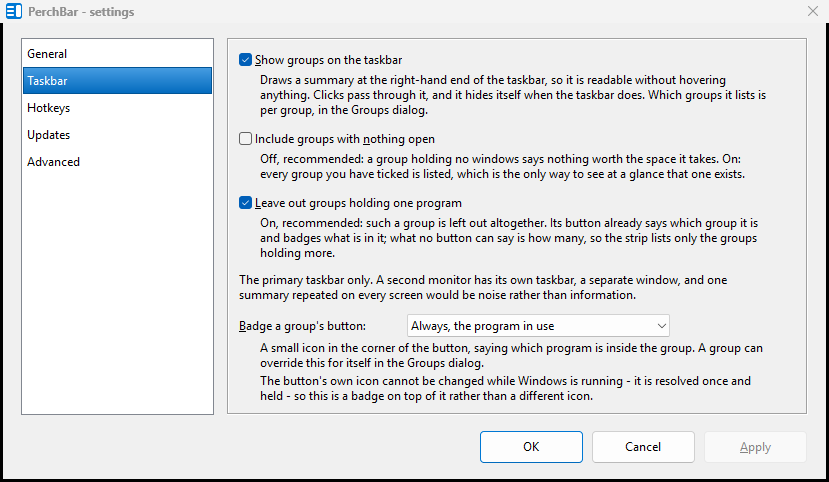
The two readout options and the global badge setting.
| Show groups on the taskbar | the taskbar readout. Which groups it lists is per group, in the Groups dialog, and off for all of them until you say otherwise. |
|---|---|
| Include groups with nothing open | Off, recommended: a group holding no windows says nothing worth the space it takes. On: every group you have ticked is listed, which is the only way to see at a glance that one exists at all. |
| Leave out groups holding one program | On, recommended. Such a group is left out of the summary altogether. Its own button already says which group it is and badges which program is in it; what no button can say is how many, so the room beside the clock goes to the groups where that number is news. It covers groups holding nothing too, which is why Include groups with nothing open only has anything to say while this is off. |
| Badge a group's button | the small icon in the corner of a group's button, saying which program is inside it. Any group can overrule this for itself. See The group icon. |
Hotkeys
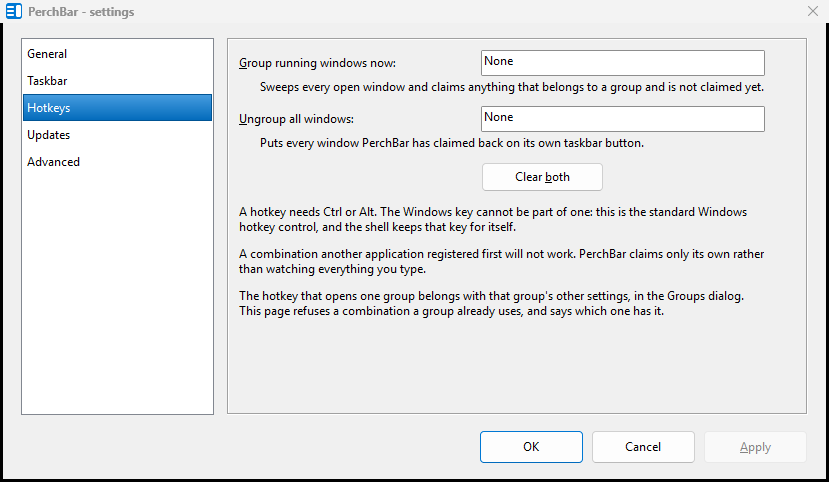
The two hotkeys that are not about one group. A group's own hotkey lives with that group, in the Groups dialog.
The two global hotkeys, and Clear both. A group's own hotkey is in the Groups dialog, but this page still knows about them: it refuses a combination a group already uses, and says which group has it.
Updates
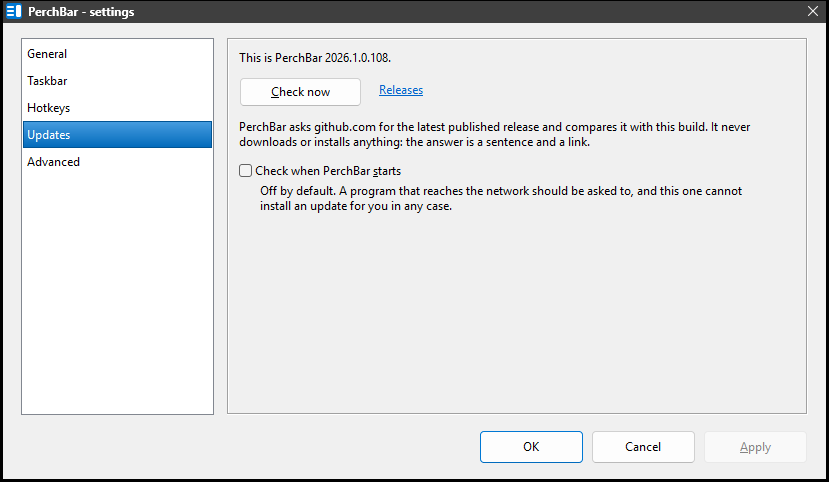
One request, and the answer is a sentence and a link. Nothing is downloaded or installed.
See Checking for updates.
Advanced
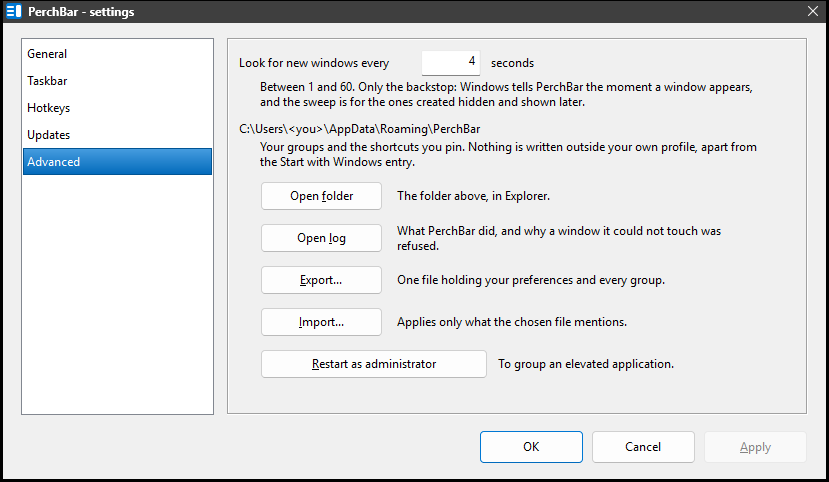
Where the settings file is, and what can be done with it. The folder shown is
yours; the picture says <you> where your user name would be.
| Look for new windows every | How often the backstop sweep runs, between 1 and 60 seconds. Only the backstop: Windows tells PerchBar the moment a window appears, and the sweep is for the ones created hidden and shown later. Slower costs nothing you would notice. |
|---|---|
| Open folder | where your groups and shortcuts are kept — see Files and settings. |
| Open log | what PerchBar did, and why a window it could not touch was refused. Unavailable in the shipping build, which has no log. |
| Export… | writes one file holding your preferences and every group — see below. |
| Import… | applies a file written by Export, asking which halves of it to take. |
| Restart as administrator | needed to group an application that is itself elevated — see Limitations. |
The last one is done by the PerchBar that is running in your notification area, so it
is unavailable when this dialog was opened on its own with
PerchBar.exe --settings and nothing else is running.
Exporting and importing
Everything PerchBar keeps lives in one file, so one exported file carries all of it: your
preferences and every group, with its members, icon, hotkey and badge. It is an ordinary
.ini you can read, keep as a backup, or copy to another machine.
The preferences are taken from what is on these pages, not from the file on disk. So an export made after changing something and before pressing Apply still holds what you are looking at, rather than the older values that are still saved.
Import applies only what the chosen file mentions. A file written by an older build names only the settings that existed then, and anything it is silent about keeps its current value. That is deliberate: taking the absent ones as defaults would quietly reset a badge mode, a colour scheme or a hotkey the file never knew about, and there would be no way back.
The two halves then behave differently, because they are edited in different places:
- Preferences land on these pages, so nothing is written until you press OK or Apply — and Cancel discards them, like any other change made here.
- Groups are written straight away, because they are not edited here but in the
Groups dialog. A copy of your previous groups is saved as
Groups.ini.bakfirst, which is the way back from this half.
A group you already have is replaced and keeps its identity, so its pinned button goes on working. A group that is new to this machine appears in the Groups dialog, and needs pinning before it has a button of its own — Windows asks you before pinning anything, so that step cannot be done for you.
Importing groups changes the file that the running PerchBar is using, so it is told to re-read it straight away. If you imported groups whose applications are installed somewhere else on this machine, their members will show as not found in the Groups dialog until you point them at the right path.
See also: Tray menu, Files and settings.