The Groups dialog
One window does everything: your groups on the left, the selected group's settings on the right, reached from the tray icon with Groups…
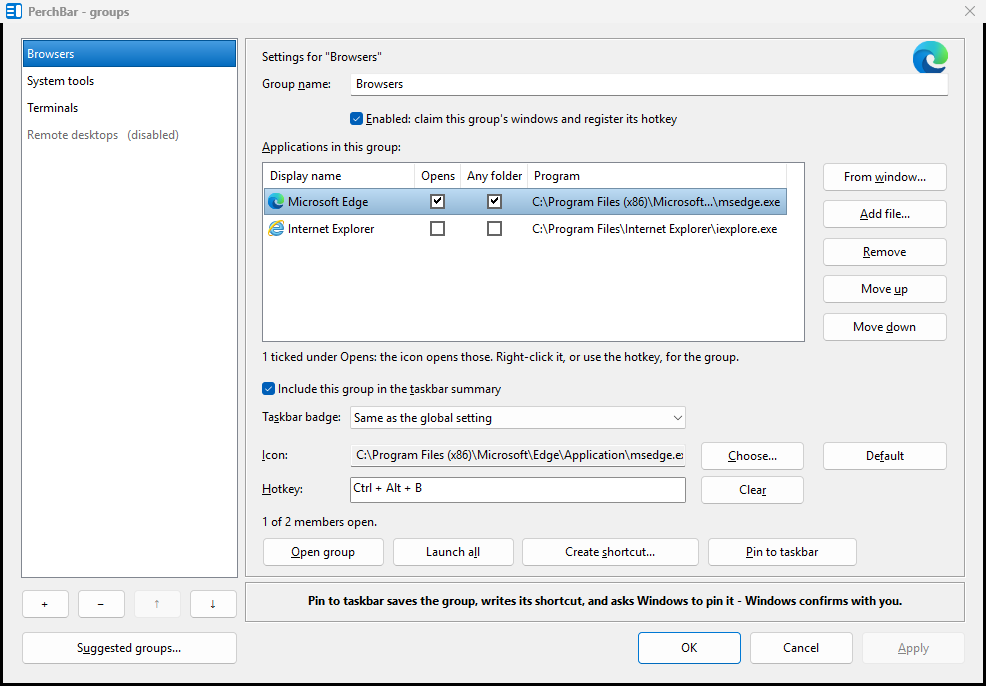
The groups on the left with their four buttons underneath; everything about the selected group on the right.
Hover anything on this dialog — a button, a field, or one of the column headings — for a sentence about what it does. F1 opens this help.
The left side
Four buttons in a row under the list. Hover one to see what it does, or right-click the list itself: the same actions are there in words, with their keys beside them.
| + | adds a group — or Insert.
It is not written to disk until you choose Apply or
OK, and until then the list shows it as (new). |
|---|---|
| − | removes the selected group and, when you apply, its shortcuts — or Delete. |
| ↑ / ↓ | reorders your groups — or Ctrl+Up and Ctrl+Down. The order is saved, because group hotkeys are registered by position. |
| Suggested groups… | offers ready-made groups for programs found on this machine. See Suggested groups. |
The right-click menu carries three more:
| Duplicate | the whole group again — members, their
settings, the icon — as <name> (copy) straight after the original, ready
to edit into something else. Or Ctrl+D. |
|---|---|
| Copy / Paste | the same thing in two steps, for pasting somewhere other than next to the group you copied (Ctrl+C, Ctrl+V). A copied group stays on PerchBar's clipboard until you close it, so you can paste it more than once. |
| Enabled | the same tick as on the right-hand side, where you can reach it without leaving the list. See Enabling and disabling a group. |
A copy is a new group: it gets an identity of its own when you apply, and a pinned button only when you create its shortcut. Its hotkey is left empty too — two groups cannot share one, and a copy that kept it would make the dialog refuse to save.
The right side
| Group name | renaming is safe at any time: the identity behind a pinned button never changes. See Creating and deleting groups. |
|---|---|
| Enabled | untick to park a group without deleting it. See Enabling and disabling a group. |
| Include this group in the taskbar summary | off by default. Adds this group to the strip of text PerchBar draws beside the clock. See The taskbar readout. |
| Taskbar badge | whether this group's button shows which program is inside it, and this group's answer beats the global one. See The group icon. |
| Applications in this group | one row per member, with its own icon, its display name, and the two per-member settings. See Adding applications, Opens and Any folder. |
| Icon | what the taskbar button will show. See The group icon. |
| Hotkey | a key combination that opens this group. See Hotkeys. |
| Open group | shows the group view now, as clicking the pinned button would. |
| Launch all | starts every member that is not already running. |
| Pin to taskbar | does the whole thing: saves the group, writes its shortcut, and asks Windows to pin it. Windows shows its own confirmation and nothing is pinned unless you accept it — an application cannot pin behind your back, and this is the one way it can pin at all. |
| Create shortcut… | writes the shortcut and opens its folder with it selected. Pin to taskbar above is the ordinary route; this one is for a group on the desktop or in the Start menu, for a copy of your own, and for pinning by hand if Windows refuses the request. |
Nothing is saved until you say so
The dialog works on a copy of everything, including the list of groups. Cancel discards the lot — edits, groups you added, groups you deleted. Apply writes without closing; OK writes and closes. Apply is greyed out until something has actually changed.
Switching group never loses an edit: what is in the panel is taken back into the group you are leaving before the next one is loaded.