The group view
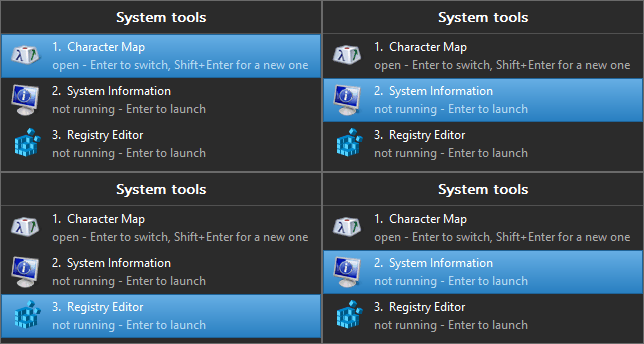
The selection walking the list. One member is open — Enter switches to it — and the other two are not, where Enter starts them.
The group view is the list that appears when you click the group's pinned button: every member, running or not. That is the part the taskbar's own preview cannot do — the shell builds previews from real windows, so a member that is not running has nothing to show.
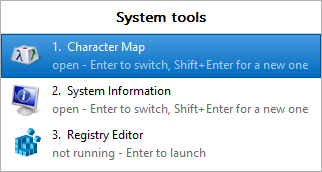
The group's name across the top, then its members. A row says whether that member is running, and how many windows it has.
When a member says "not found"
A row reads not found - the program has moved or been uninstalled when the program is no longer where the group says it is. PerchBar checks the place it would actually launch from, so an app from the Microsoft Store that has simply updated does not say this — those are found again automatically, however many times they update.
It is worth knowing where this line turns up. A member marked Opens is supposed to start when you click the group's icon; if it cannot be started, PerchBar shows this view instead, rather than leaving the icon looking dead. So the view appearing when you expected an application is the report, and this line on the row is the reason.
Fix it in the Groups dialog: remove the member and add it again with From window… or Add file…. If the program is one that installs into a folder named after its version, tick Any folder on it as well.
Light or dark
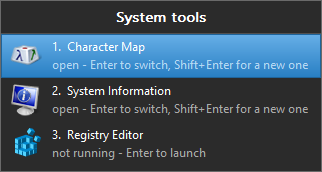
The same view, dark.
By default the view matches the taskbar, which is what it opens against. That is a different Windows setting from the one your applications follow, and plenty of people run light applications on a dark taskbar — so a view that followed the applications setting would be a light panel sitting on a black taskbar.
To choose for yourself, use Colours on the Settings dialog's General page: Same as the Windows taskbar, Light or Dark.
The selected row is your Windows accent colour. On a dark background PerchBar uses a lighter shade of it than Windows gives you, because an accent is chosen to look right on a light surface — used as-is on a dark one, the row meant to stand out ends up darker than the rows around it.
This is the only window PerchBar draws itself, so it is the only one the setting applies to. The Groups and Settings dialogs are ordinary Windows dialogs and follow Windows.
What a row does
| Member with a window | switches to it. With several windows open, it says how many. |
|---|---|
| Member with no window | starts it. |
| Hold Shift, or middle-click | starts another one, even when the member is already open. This is how you get a second Visual Studio, or a second terminal, out of a group. |
Keys
| Up, Down | move through the list |
|---|---|
| Enter | switch to or start the selected member |
| Shift+Enter | start another one, whether or not it is already open |
| Ctrl+Enter | start every member that is not running |
| 1–9 | go straight to that row; hold Shift for another one |
| Esc | close |
The view closes as soon as it loses focus, like the Start menu. Clicking elsewhere dismisses it; nothing is left behind.
Where it opens
On the Settings dialog's General page, Open the group view chooses between the two:
| at the mouse pointer | the default, and what a popup usually does. It is also the only sensible answer for a hotkey, which can be pressed with the mouse anywhere. |
|---|---|
| above the taskbar | directly above the group's own button, where the shell's own Jump List appears. PerchBar finds the button by the identity it pinned it under, so this is right however the view was opened — the pointer does not have to be anywhere near it. A group with no button on the taskbar yet has nothing to sit above, so that one lines up with the pointer instead, and so does everything when the taskbar is hidden. |
The window is as wide as its contents need and no wider, so a group of short names gets a narrow view and one whose members have several windows open gets a wide one.
Other ways to open it
- The group's hotkey, which always shows the view.
- Open group in the Groups dialog.
- Show all members on the button's Jump List.
- Middle-click the button, or Win+Shift and its number, for a group whose button normally opens its members directly.