Adding applications
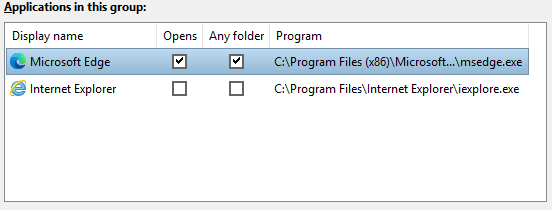
What is in the group, and how each member is matched. The buttons beside the list add from a running window, add a file, remove, and reorder.
Each row of Applications in this group is one member: a program, not a window. That distinction matters — a group can offer to start something that is not running at all.
Two ways to add
| From window… | lists the windows open right now, with their icons. Pick one and PerchBar adds the program behind it. This is the easy way, and the one to prefer: no path to type and no wrong file to pick. |
|---|---|
| Add file… | pick an .exe or a
.lnk yourself. Use this for a program that is not running. |
Display name
The name in the first column is what the group view and the Jump List call the member. PerchBar
fills it in from the program's own version information rather than its file name, so you get
GitHub Desktop rather than GitHubDesktop.
You can change it. Double-click the name, or select the row and press F2, then type. It is worth changing when two installations of one program report names that are technically different and still unhelpful — two Visual Studio versions, for instance, where VS 18 and VS 2022 say more than either version resource does.
Ordering and removing
Move up and Move down set the order the group view and the Jump List use. Remove takes the selected member out; so does Remove from group on the row's right-click menu.
The right-click menu
Every row has one, carrying both per-member settings, Rename and Remove from group. Everything reachable by clicking a cell is reachable there too.